01
Scan a label
Use the camera or choose a clear photo from your device. Select skincare or packaged food before analysis.
Camera or photo library PurescanTips
Get the app
Ingredient label companion
Scan skincare and packaged-food labels, select a profile that matters to you, and review a clear ingredient report.
An informational aid, not medical advice. Always check the original product label.
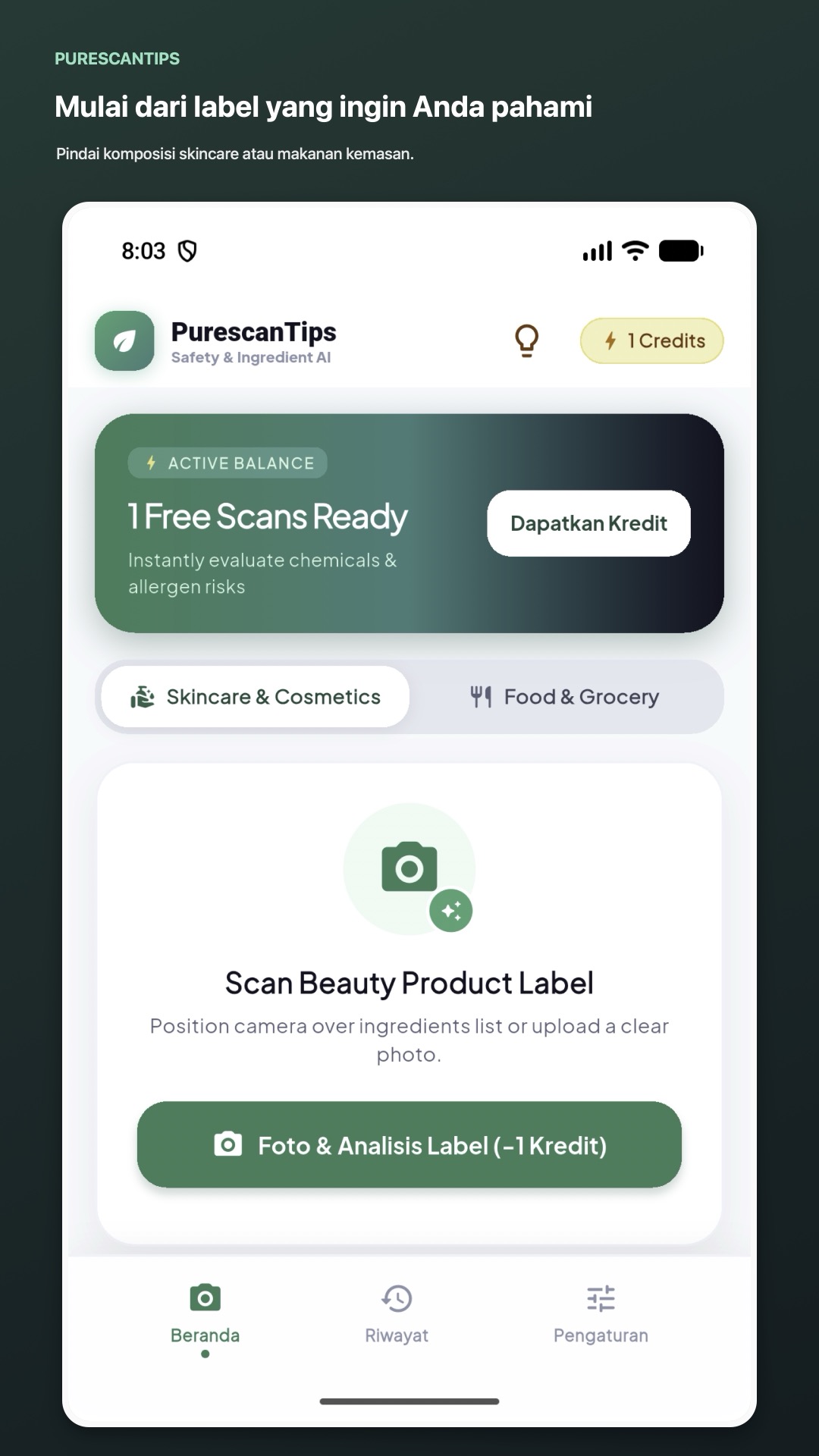
PurescanTips turns a product label into an ingredient-by-ingredient view you can review at your own pace.
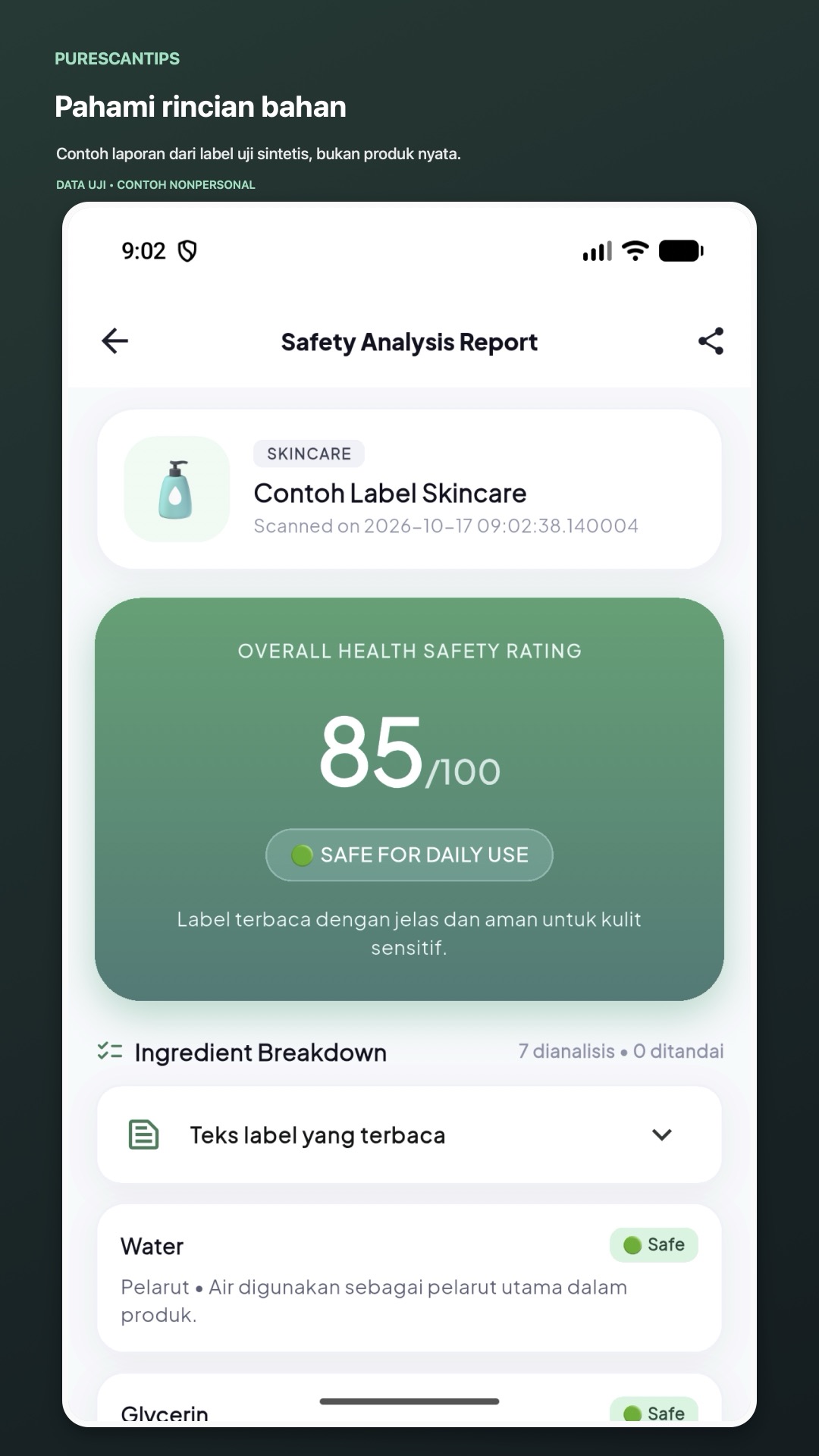
Choose skincare or packaged food, take or select a label photo, and receive a report with recognized text, a summary, ingredient notes, and any alternatives returned for that scan.
Explore the featuresPractical tools for reading labels and keeping track of scans. Results can vary with the image and label quality.
Use the camera or choose a clear photo from your device. Select skincare or packaged food before analysis.
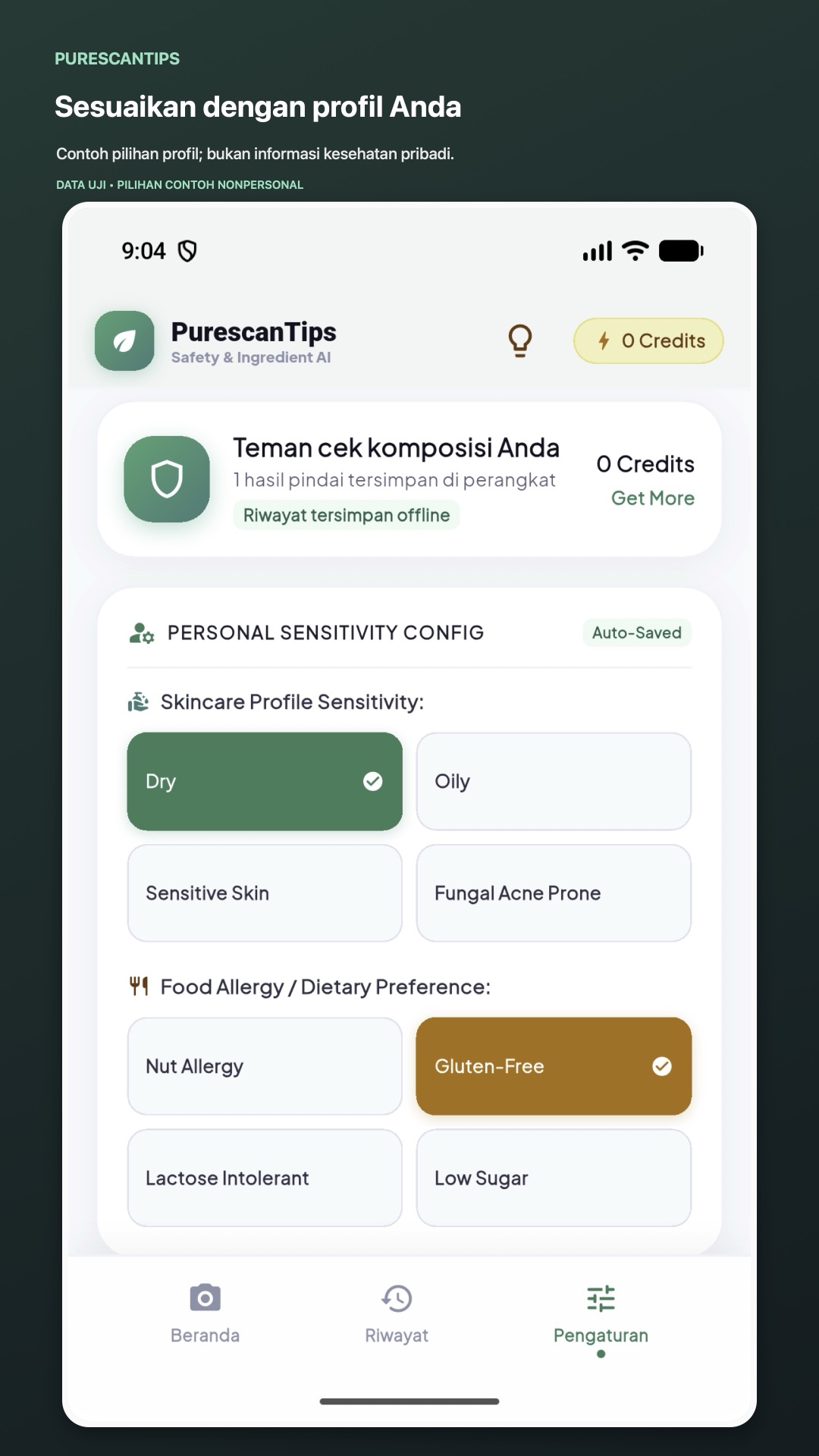
Camera or photo libraryUse the profile options available in the app to add context for skincare sensitivity or food preferences.
Your profile stays editableRead the detected label text, a summary, an ingredient breakdown, and the report details returned for your scan.
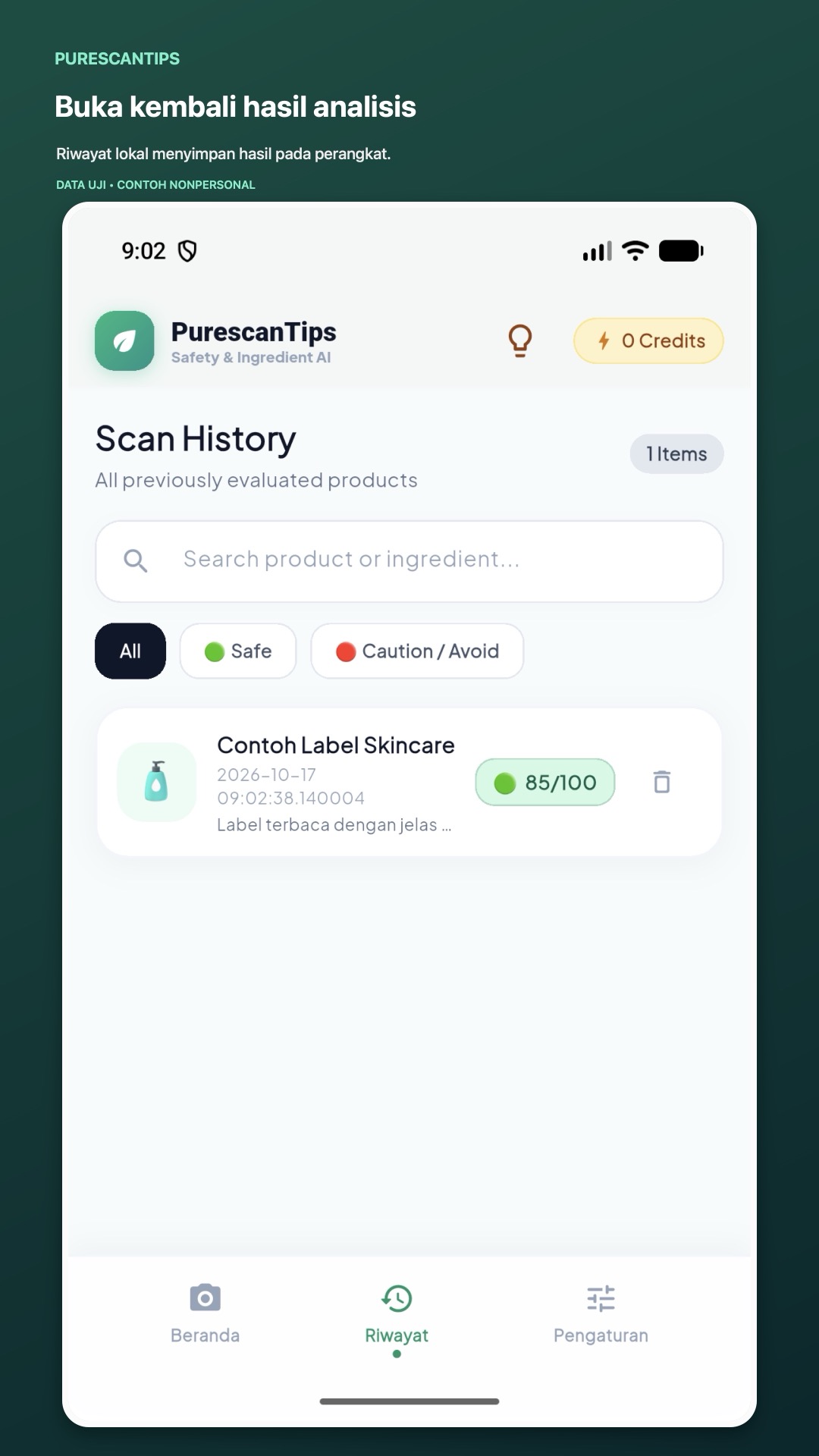
Details in one viewScan history is saved locally on your device, so you can revisit reports offline. Share a report image when you need to.
Local history & report sharingPurescanTips provides informational guidance only. It does not diagnose, prevent, or treat a health condition, and its results are not a guarantee of product safety.
Preview the actual app flow. The report and history examples use a clearly labeled synthetic test product.
Each analysis uses the image and options you submit for that scan.
Start with skincare or packaged food so the report can use the right context.
Take a photo or select a readable label image from your device.
The image is sent to the analysis service. Review its returned summary and ingredient details.
Revisit reports in on-device history or share a report image from the result screen.
Keep the original label in view.
OCR and analysis may miss or misread information. For allergies, sensitivities, or other health concerns, confirm with the manufacturer or a qualified professional.
Need more help? Visit Help or contact support.
Ingredient or nutrition labels for skincare, cosmetics, and packaged food. Choose the matching category in the app.
No. The report is an informational aid. OCR or analysis may be incomplete or incorrect, so always check the original package and contact the manufacturer when details matter.
No. It does not diagnose or treat conditions, assess individual medical risk, or guarantee that a product is safe for you. Ask a qualified health professional about personal health concerns.
Scan history is saved locally on your device. It is not synced to a PurescanTips account. You can delete history or reset local app data in Settings.
Each analysis uses the credit amount shown in the app before you submit. The server manages the available balance. Rewarded ads may be offered for credits, subject to availability and the daily limit shown in the app.
Yes. Use the share action on the report screen to share a report image through the sharing options available on your device.
Read the policies for PurescanTips or get help with the app.
Read the label with more context
Information only. Not a substitute for professional health advice.